A Free POS for Saudi Restaurants: Open an Account and Start Selling Today
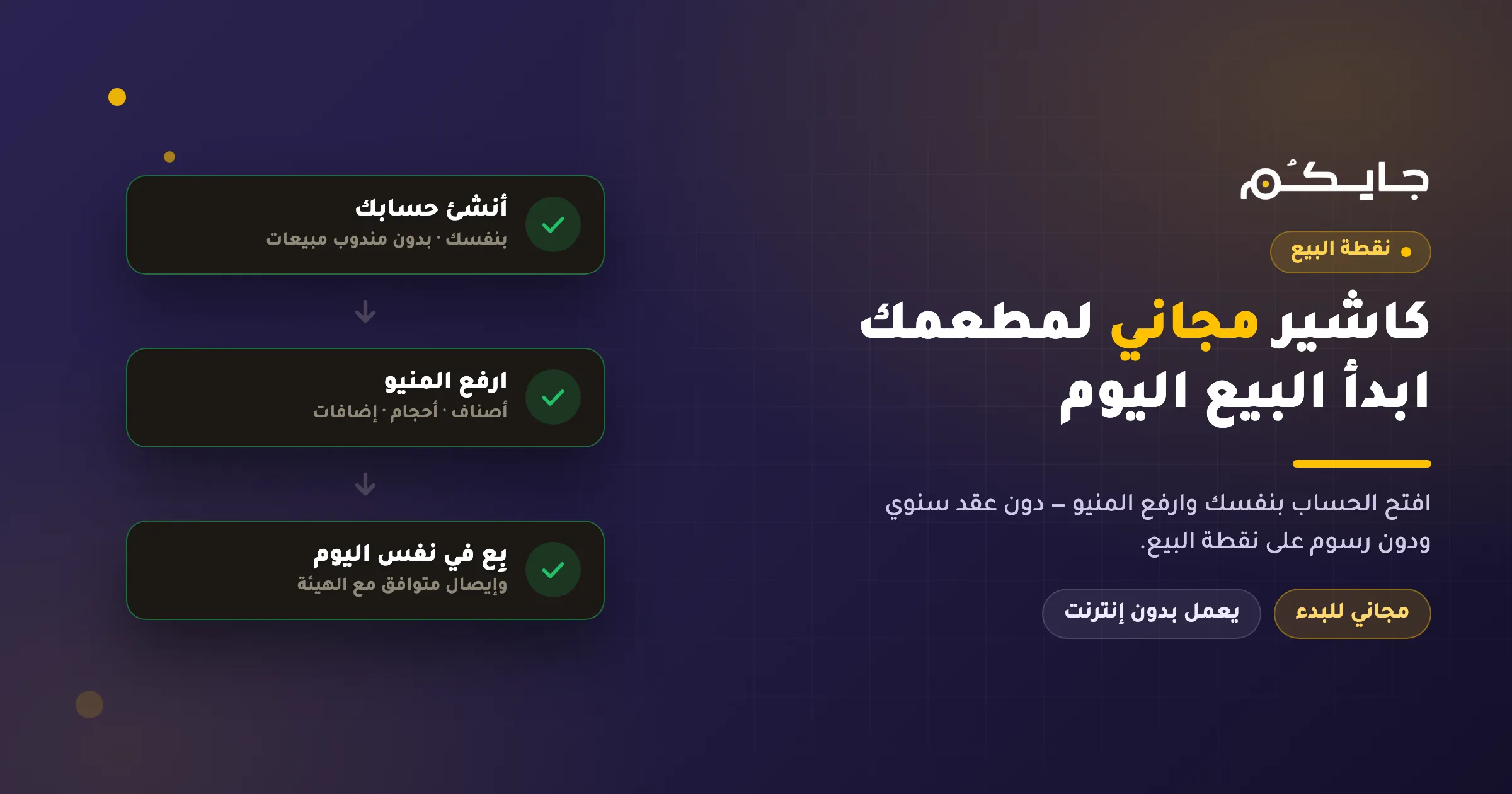
In short: you can open a Jaicome POS account for free, upload your menu, and start taking orders yourself. The point of sale itself is free to start; what costs money is the ZATCA e-invoicing integration subscription and any optional add-ons you switch on. If you’d rather not set it up alone, you can book a demo instead.
The most common question we get from new restaurant owners is not “which POS is best?” It is “how much will this cost me before I have sold a single riyal?” That is a fair question. Plenty of systems want an annual contract and a per-terminal fee before you have even seen the screen.
This guide explains how to actually start, and where the real costs sit.
What “free POS” actually means
“Free” means several different things in the POS market, and the difference matters:
| Model | What it means in practice |
|---|---|
| Free to start | You use the point of sale at no charge and pay only for the extras you enable |
| Free trial | Free for a fixed period, then a mandatory subscription |
| Free for a cut | No subscription, but a percentage is taken from every sale |
| Free with hardware | “Free” as long as you buy expensive hardware |
Jaicome POS is free to start. You open the account and sell without a fee on the point of sale itself, and you pay only when you turn on a service you genuinely need. Pricing does change, so confirm the current terms before you plan around them.
The steps: zero to first order
1. Create your own account
Sign up straight from the dashboard — you don’t need a quotation to begin. If you’d rather be walked through it, book a demo and the team will set you up instead.
2. Add your branch details
Business name, branch, opening hours and currency. If you run more than one branch, they all live under the same account.
3. Upload your menu
Add categories, items and prices, then modifiers (sizes, add-ons, required options with min/max rules) so combinations are priced automatically.
4. Install the app on your device
Run the POS on hardware you already have and sign in. Your menu and prices are stored on the device itself.
5. Run a real test order
Open a ticket, add an item, take payment and print the receipt. If that cycle works, you are ready for service.
6. Switch on only what you need
From the Add-ons Store, enable the kitchen display, staff permissions, card payments or delivery — each one separately, when you actually need it.
So what is paid?
Being straight about this matters more than the marketing:
- The ZATCA integration — e-invoicing is built into the system, but the official integration with the Zakat, Tax and Customs Authority is a paid subscription.
- Card payments (JPay) — to take mada and cards on the phone itself via Tap to Pay on Android.
- Optional add-ons — the kitchen display, open tickets, advanced permissions, WhatsApp and delivery services.
Everything else — orders, menu, branches, reporting and receipt issuing — runs without a fee on the point of sale.
Three questions to ask any vendor before signing
- What is billed per branch, and what is billed per device? Many quotes look cheap until you open a second branch or add a third terminal.
- Does it keep working when the internet drops? If the answer is no, you are buying a system that stops selling at peak hour.
- Who owns my data, and can I export it? If you cannot export your menu and your sales history, you are locked to the vendor rather than to the software.
FAQ
Is a free POS enough for a real restaurant? Yes, provided it covers the essentials: order entry, modifiers, payments, receipt printing and reporting. The free systems that fall short are the ones that cap the number of items, invoices or devices — ask about those limits specifically.
Do I need special hardware? No. The POS runs on hardware you already have. You only need specific equipment if you want a receipt printer or a particular hardware feature.
Are the invoices ZATCA compliant? Every charged order produces a compliant simplified tax invoice with the QR printed on the receipt, generated on the device itself even with no internet. The official integration with the authority is a paid subscription. For the details, see the ZATCA-compliant POS checklist.
Can I migrate from another system? Yes. Export your items, prices and sales history from the old system before you cancel it, build your menu in Jaicome in parallel, then switch over on a quiet day.
Does it handle more than one branch? Yes, from a single dashboard, with each branch keeping its own menu, prices, hours and settings.
Start today
You don’t have to wait to start selling. Start with Jaicome POS, open the account yourself, and turn on add-ons only when you actually need them.